This step-by-step guide shows you which system settings in Android are relevant for the reliable operation of your digital signage player. It provides a structured overview of the most important menu items—from basic device settings to typical options for stable continuous operation.
system settings

home screen
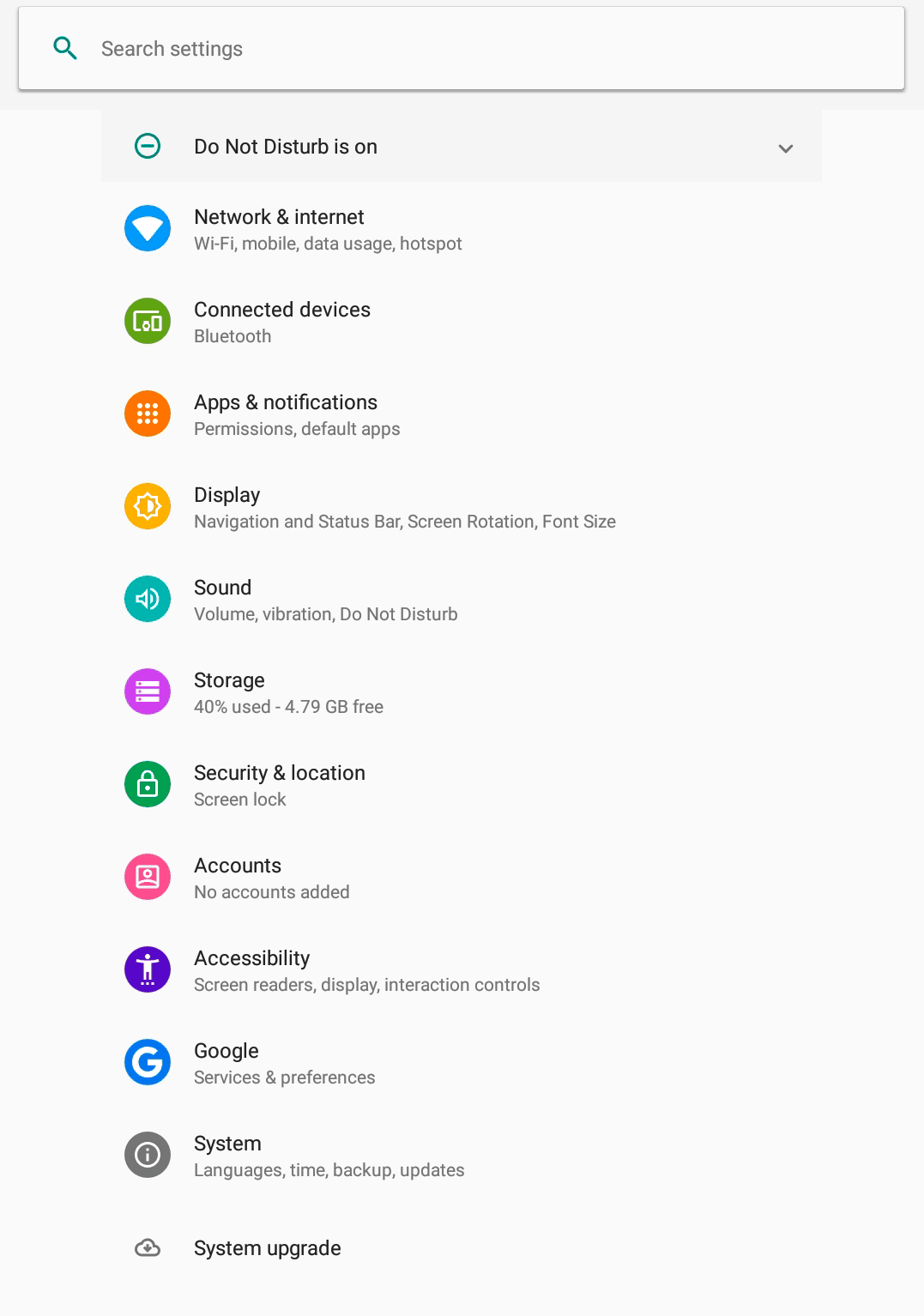
This screen will be displayed after you start the device.
Navigate directly to Settings below or go to the launcher and open Settings there.
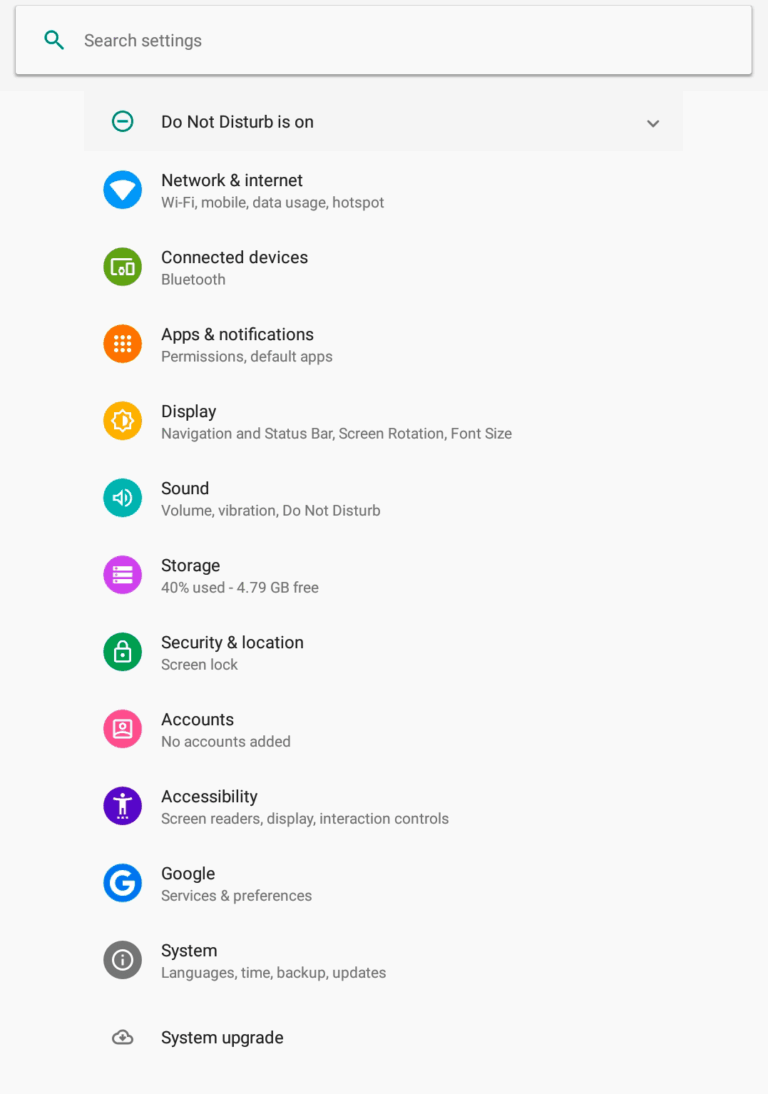
Network & Internet
If you have not connected the device via LAN, you can establish a connection to the network here.
Sound
Here you can configure the settings for sound and notifications. For digital signage devices, we recommend activating "Do Not Disturb" mode so that all content can be played without distractions.
Security & Location
For digital signage devices, the display lock and screen saver should definitely be deactivated here.
system
Here you can set the desired language. To ensure that the time control functions correctly, you should also check that the correct time zone is set.
Network & Internet
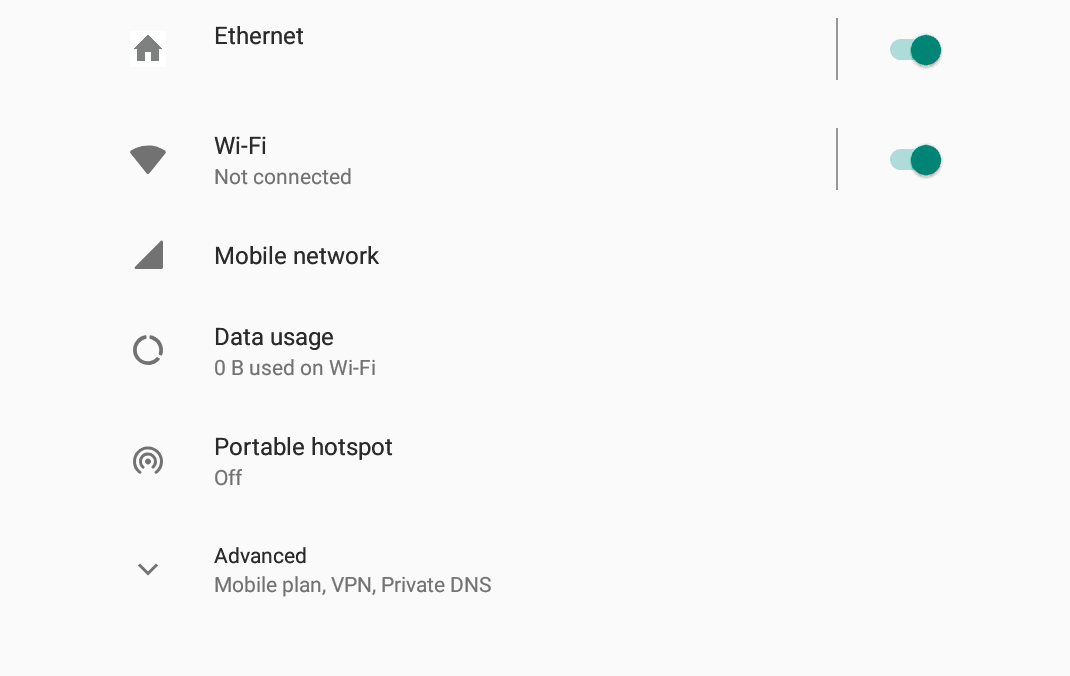
Settings > Network & Internet
Ethernet
Here you can configure the settings for the wired connection via LAN and check the network settings.
Wi-Fi
Here you can connect the device to a Wi-Fi network or a mobile hotspot.
Mobile Network
All of our Signaro signage devices are equipped for LTE/5G connectivity and can be retrofitted with the appropriate module.
Semi-outdoor and outdoor devices are equipped with the appropriate modules at the factory.
Sound & Do Not Disturb
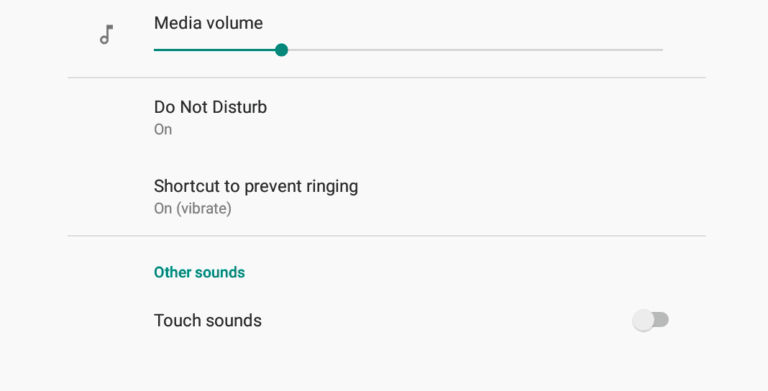
Settings > Sound
Do Not Disturb
This setting ensures that no sounds are emitted by the system and no notifications are displayed.
Touch sounds
Key tones and touch tones should always be disabled for a better user experience.
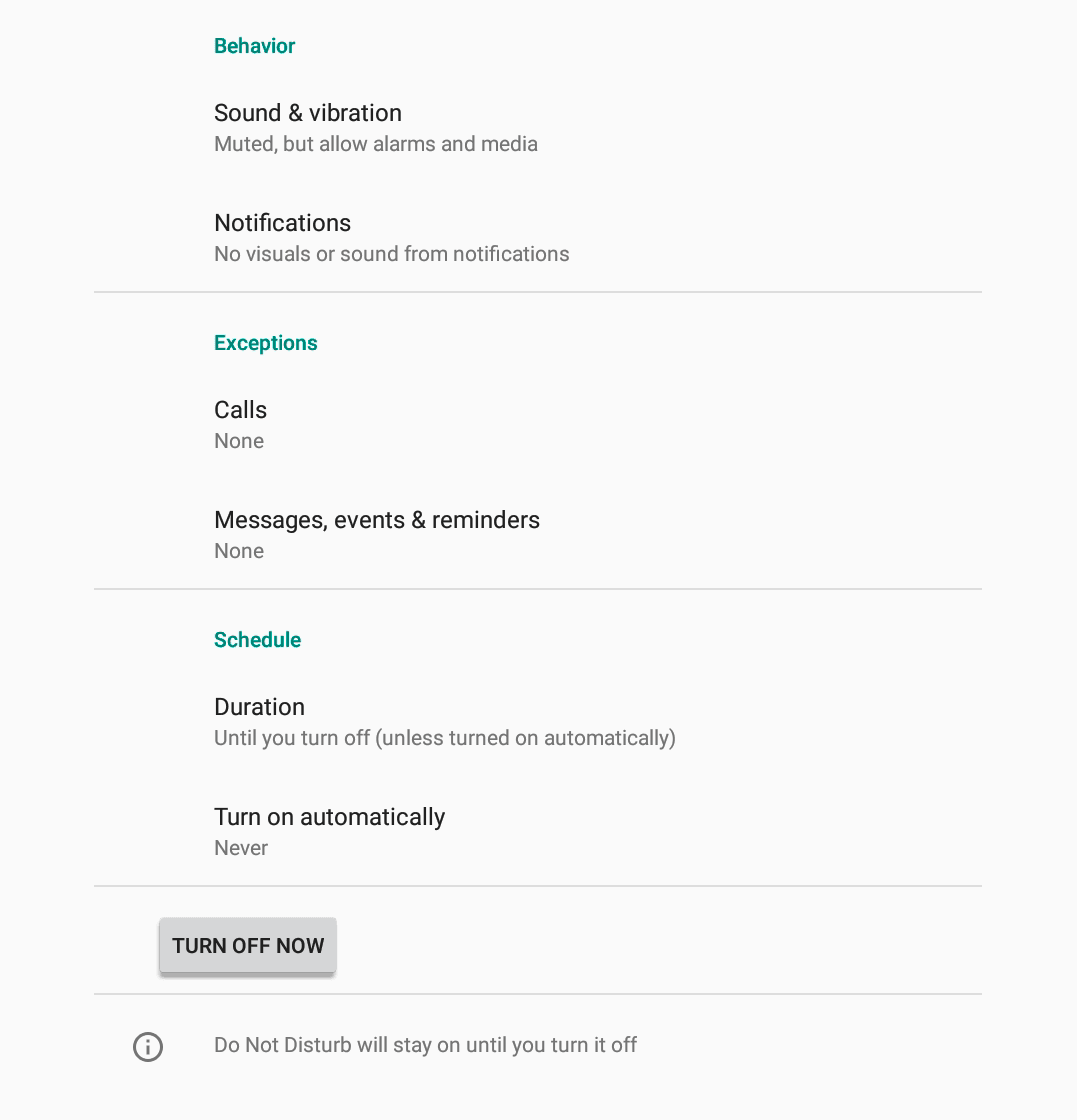
Settings > Sound > Do Not Disturb
Sound & vibration
Here, the settings are adjusted so that no system sounds are emitted.
Important: If all options are disabled, an icon with a crossed-out speaker will appear.
Notifications
Here, the settings are configured so that no system sounds are played and no notifications are displayed.
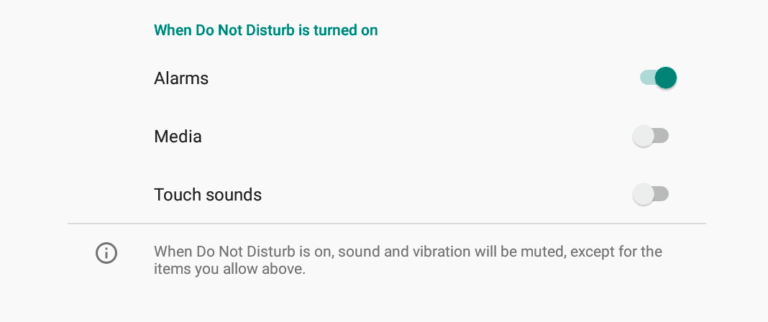
Settings > Sound > Do Not Disturb > Sound & vibration
When Do Not Disturb is turned on
The following settings are possible:
Do not output any sounds from the content on the system side (videos are muted):
- Alarms - ON (so that no symbol with a crossed-out speaker is displayed)
- Media - OFF (content with sound is played silently)
- Touch sounds - OFF (optional)
Play sounds from the content (IMPORTANT: Check the volume):
- Alarms - OFF
- Media - ON
- Touch sounds - OFF (optional)
Here, the settings are adjusted so that no system sounds are emitted.
Since an icon with a crossed-out speaker is displayed when all options are deactivated, we will show you what options you have on the next page.
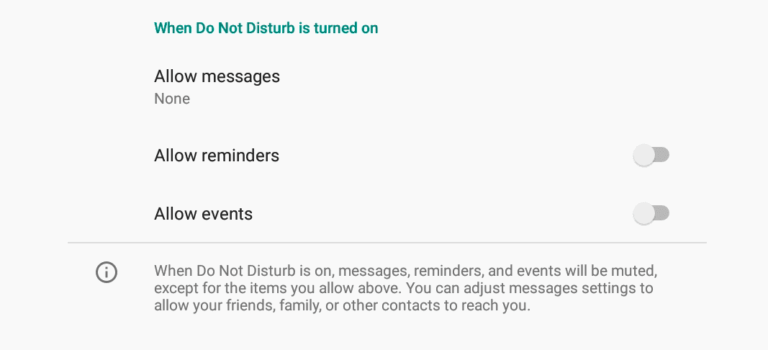
Settings > Sound > Do Not Disturb > Messages, events, and reminders
When Do Not Disturb is turned on
The following settings are made:
- Allow massages - OFF "No visuals or sound from notifications"
- Allow reminders - OFF
- Allow events - OFF
safety
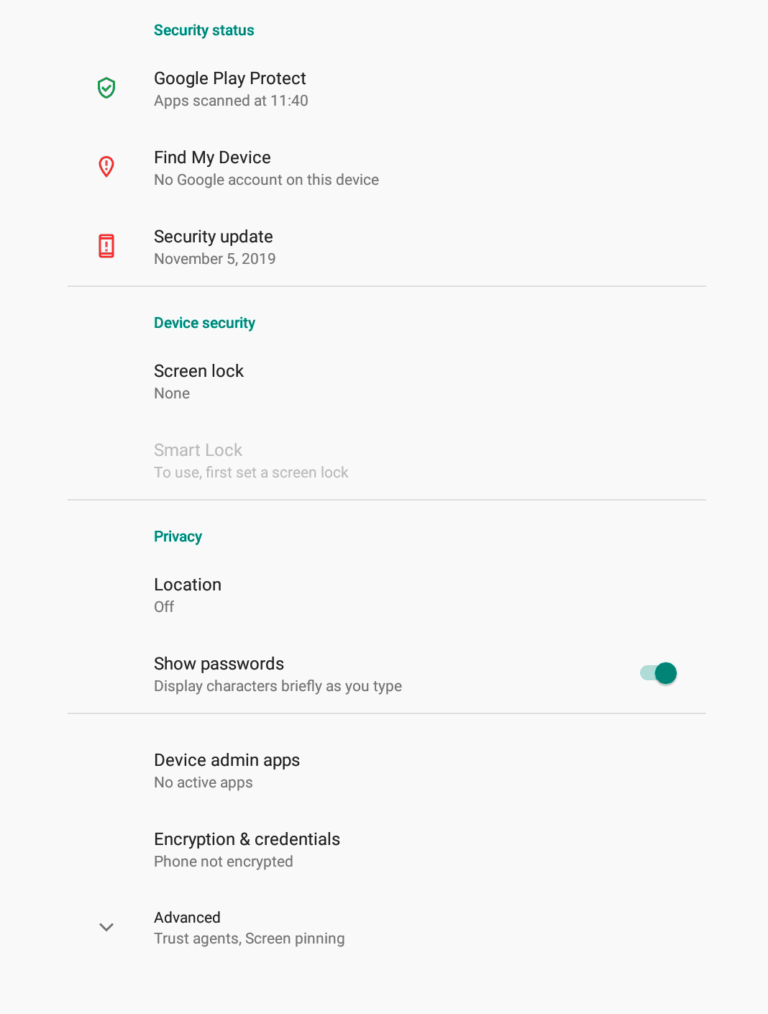
Settings > Security
Find My Device
Here you have the option of connecting the device to a Google account and the "Find my Device" service. This is recommended for mobile devices.
Screen lock
Check that the screen lock is disabled so that the content is displayed without interference.
Device administration applications
If you use Signaro Cloud or Signaro , make sure that device management is enabled by the apps.
Date & Time
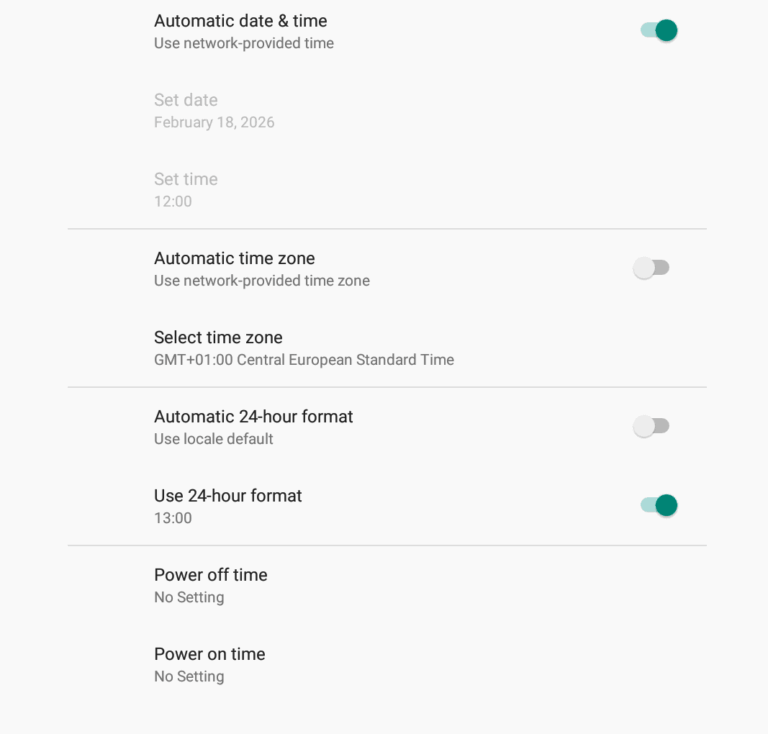
Settings > Date & Time
Automatic time zone
The automatic time zone should be deactivated so that the time zone does not change.
Select time zone
Set the correct time zone and check the setting using the time displayed.
Use 24-hour format
For the time to be displayed correctly, the 24-hour format should be set.
"Power off" and "Power on" settings
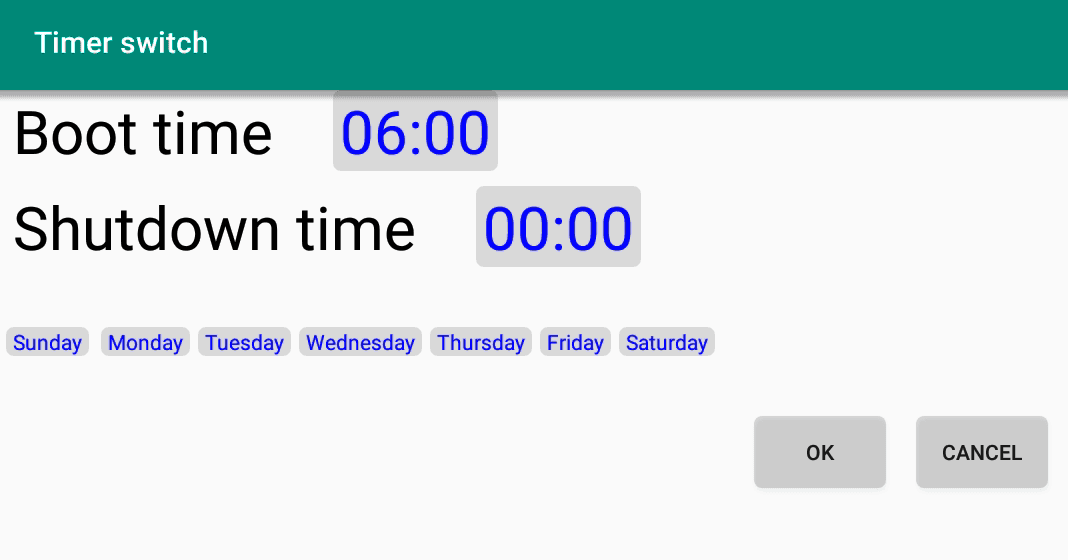
The automatic start-up and shutdown of the devices is set via the "Auto Start settings" app. Please do not make any settings here.
system
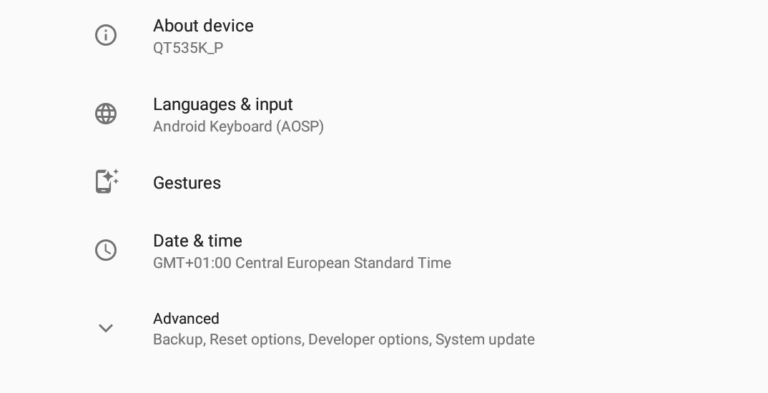
Settings > System
Languages & input
Here you can set the system language and keyboard layout.
Date and time
For playlists to play correctly, the correct time zone and time must be set here.
Advanced
Here you have the option to create backups and reset the device.