The Autoplay app ensures that your content is automatically played from a USB stick or memory card—without having to start it manually. In our step-by-step guide, we show you how to select the right settings, choose the source, and activate automatic playback when plugging in or after a restart. This ensures that your digital signage display runs reliably in stand-alone mode and is ready for use in just a few minutes.
Autoplay (from USB or memory card)

home screen
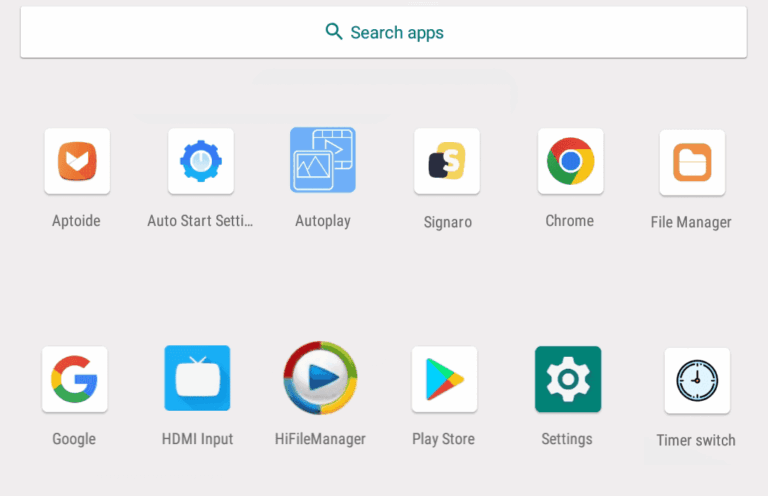
Open the App Launcher from the Start screen, which displays all installed apps.
App Launcher
Open the "Autoplay" app in the App Launcher.
Autoplay app
Autoplay app
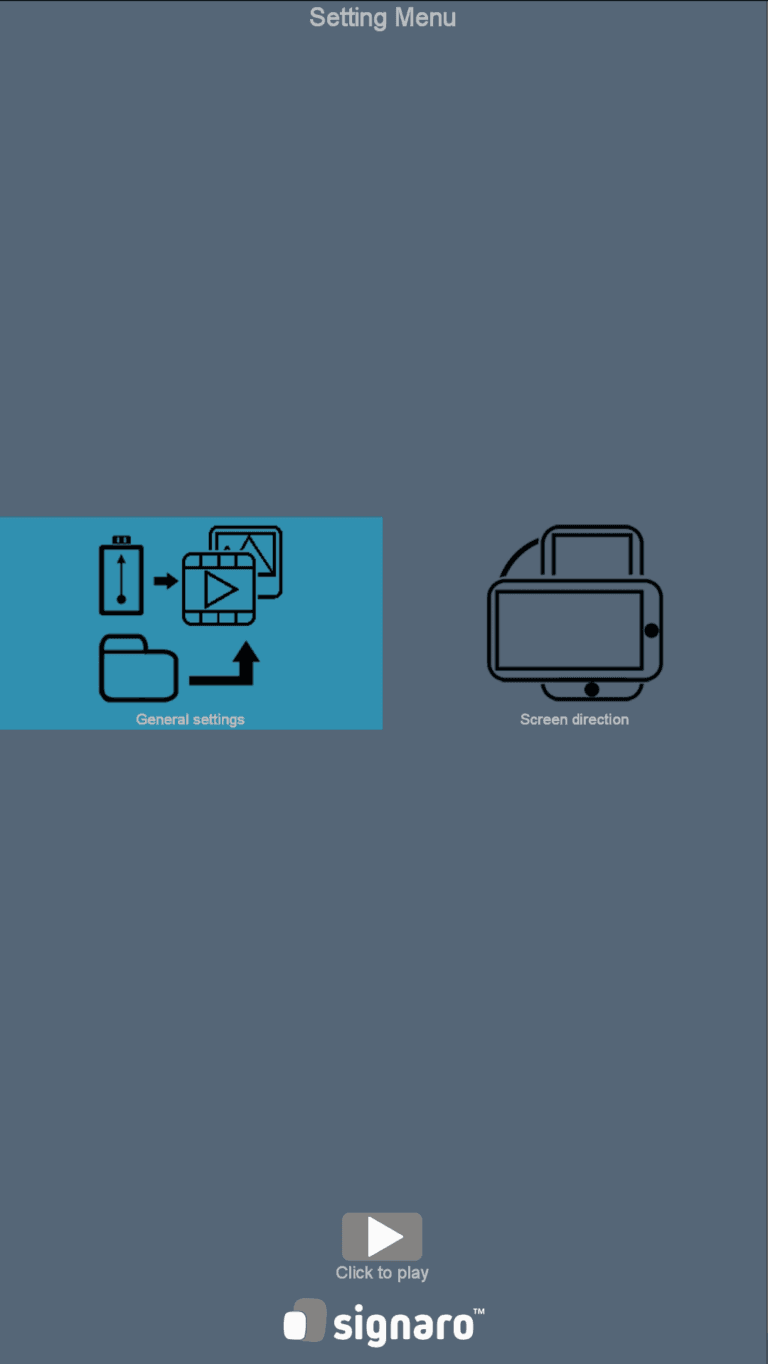
General settings
Open the basic settings.
Direction of the screen
If content is not displayed correctly, e.g., upside down, you can adjust the display orientation here.
Autoplay > General settings
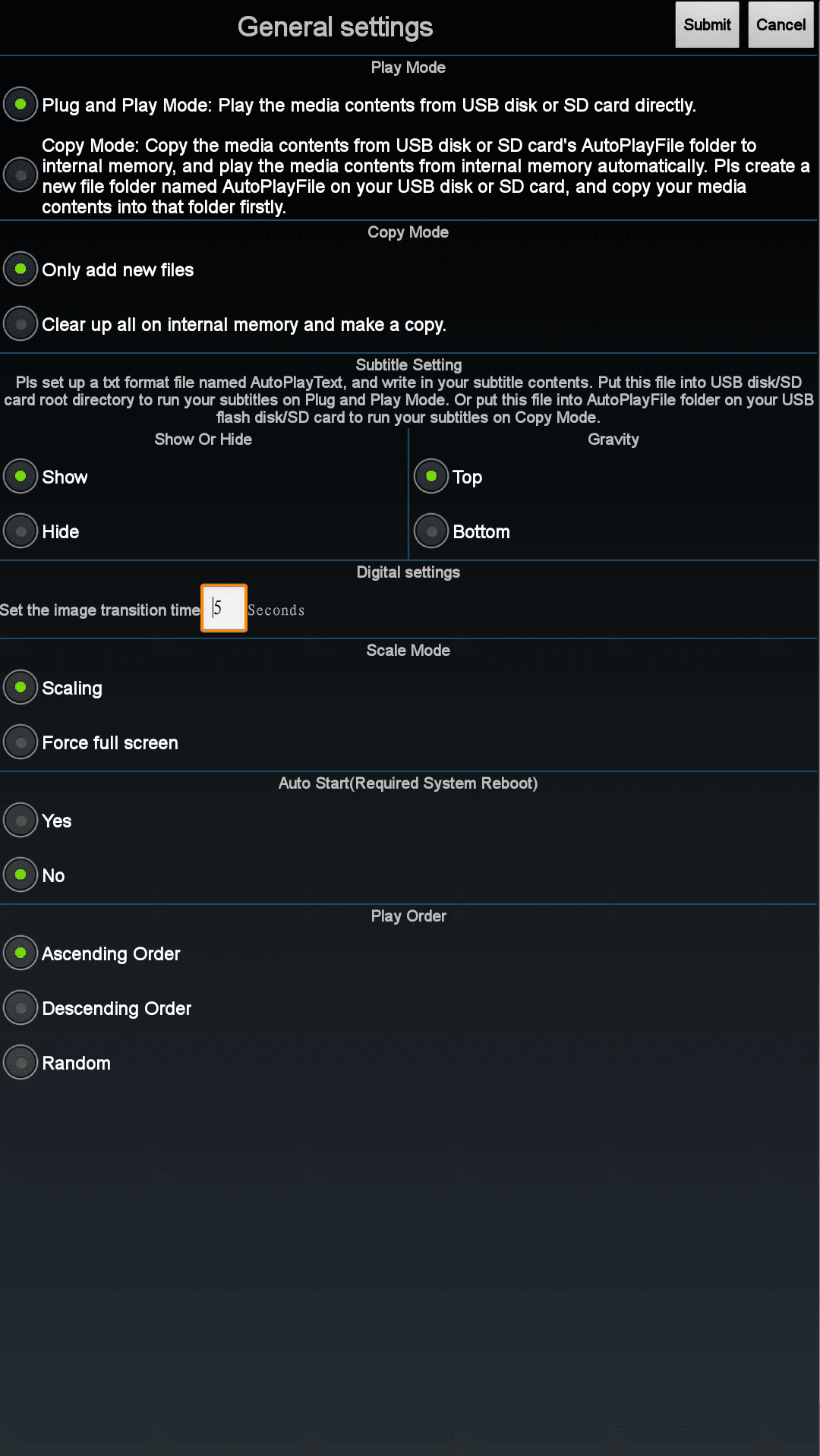
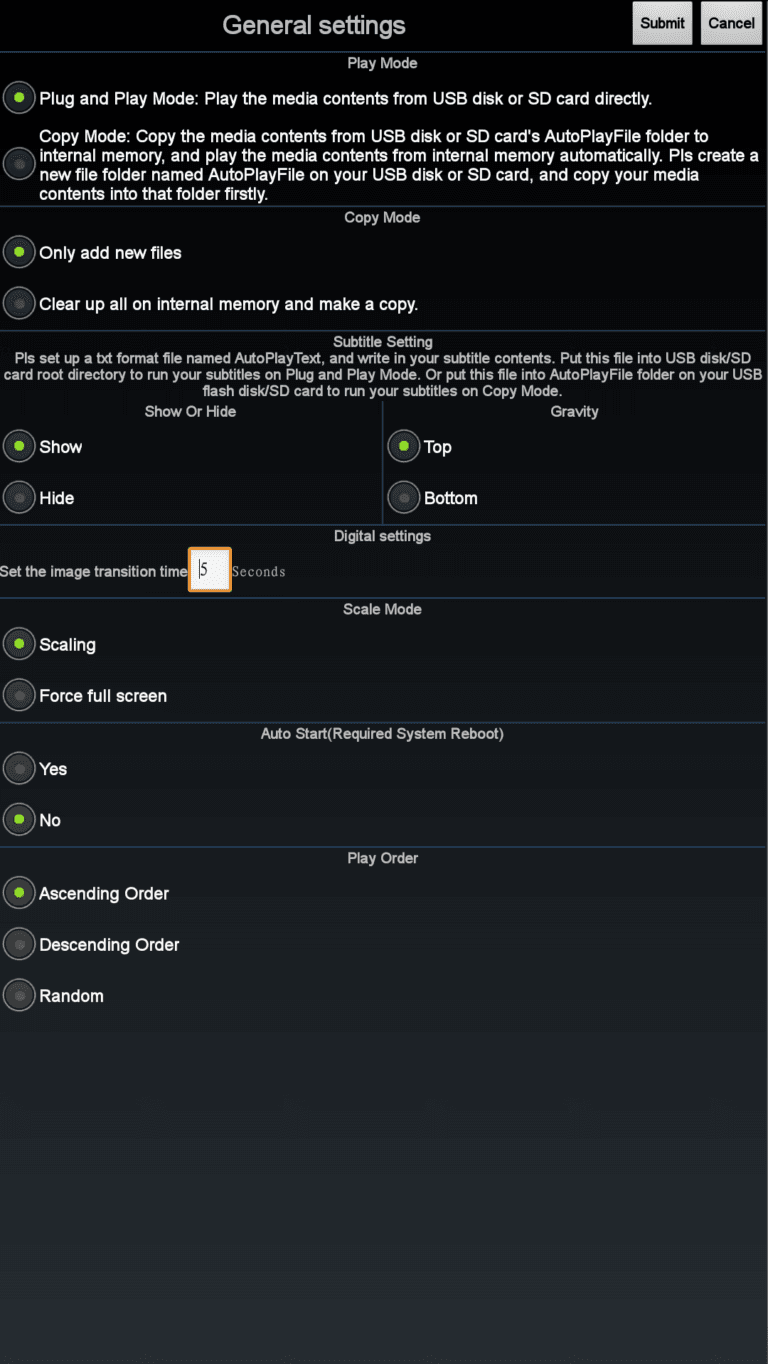
Play Mode
Plug and Play Mode: Useful if you change the content regularly or provide different media for different content, e.g., for weekdays.
Copy Mode: Copy Mode is particularly suitable if the content rarely changes and new content is only added occasionally. A folder called "AutoPlayFile" should be created on the medium to store all content.
Copy Mode
Only add new files: No data is deleted from memory. The device only checks whether new data has been added and copies it to memory.
Clear up all internal memory and make a copy: Whenever a medium is connected, the entire memory is cleared and all data is copied again.
Subtitle setting
If different subtitles are to be displayed, you must create a text file named "AutoPlayText.txt." In each line, you can specify a subtitle for the desired medium, which will be displayed on the screen.
This is useful, for example, if you want to play a slideshow with photos from different events. You can store the event and other information for each photo in the text file.
Digital settings
Enter the duration in seconds that an image should be displayed here. Videos are always played for the duration of the video.
Scale Mode
Scaling: The proportions of the media are retained. They are enlarged from the center until the entire image is filled.
Force full screen: The media is stretched and distorted until it fills the entire screen.
auto start
Should the app start automatically when the device is turned on?
Play Order
- Ascending (A-Z)
- Descending (Z-A)
- Random > Random playback